Booking Template
The Booking Template menu allows users to create, modify and delete templates for functions and bookings at the property. The templates created are displayed in the Templates section of the Create Bookings From Template screen.
Breakpoint: 170420 - Booking Template (Engineering - Groups)
Perform the following steps to create a package plan:
Navigate to Settings à Template Setup à Booking Template.
Click Create Booking Template.
Refer to the following table and fill in the details.
|
Field |
Description |
|---|---|
|
Template Details |
|
|
Template Code |
A unique code to represent the template. Up to 8 alphanumeric characters are supported. |
|
Template Name |
A name for the booking template. The Package Component and Room Component tabs are editable only if a template code and template name details are provided. |
|
List Order |
The position in which the template must appear in the Template section. |
|
Active |
When enabled, indicates that the template is active. If not, the template is not listed in the Template section. |
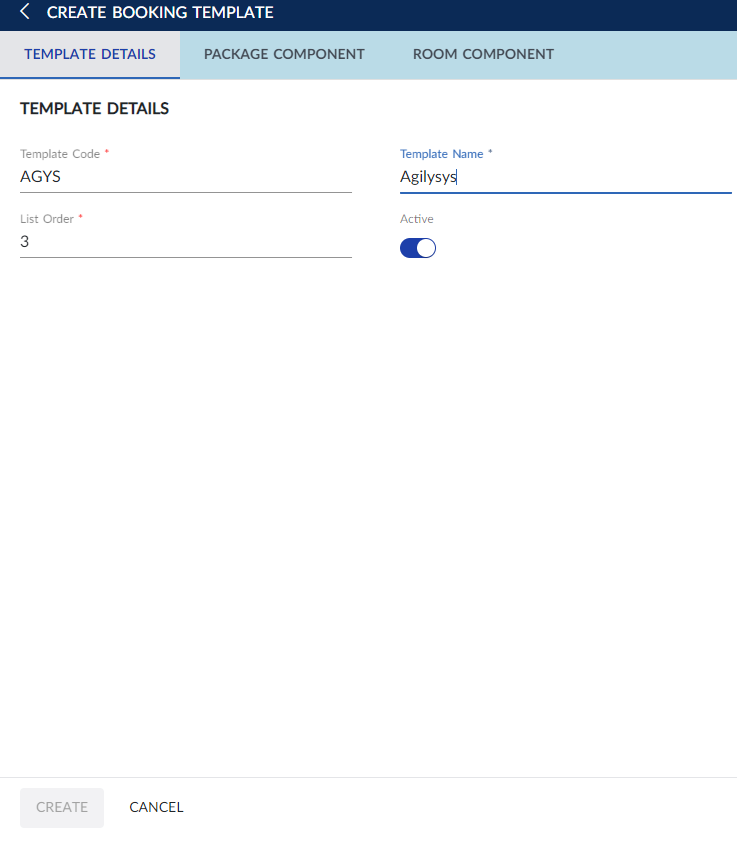
Navigate to Package Components tab.
Select a preferred package for the booking from the Package drop-down list. The components selected available on the selected package are displayed in the grid.
Users can click the Enable the Day Packages Only flag to select only the day packages.
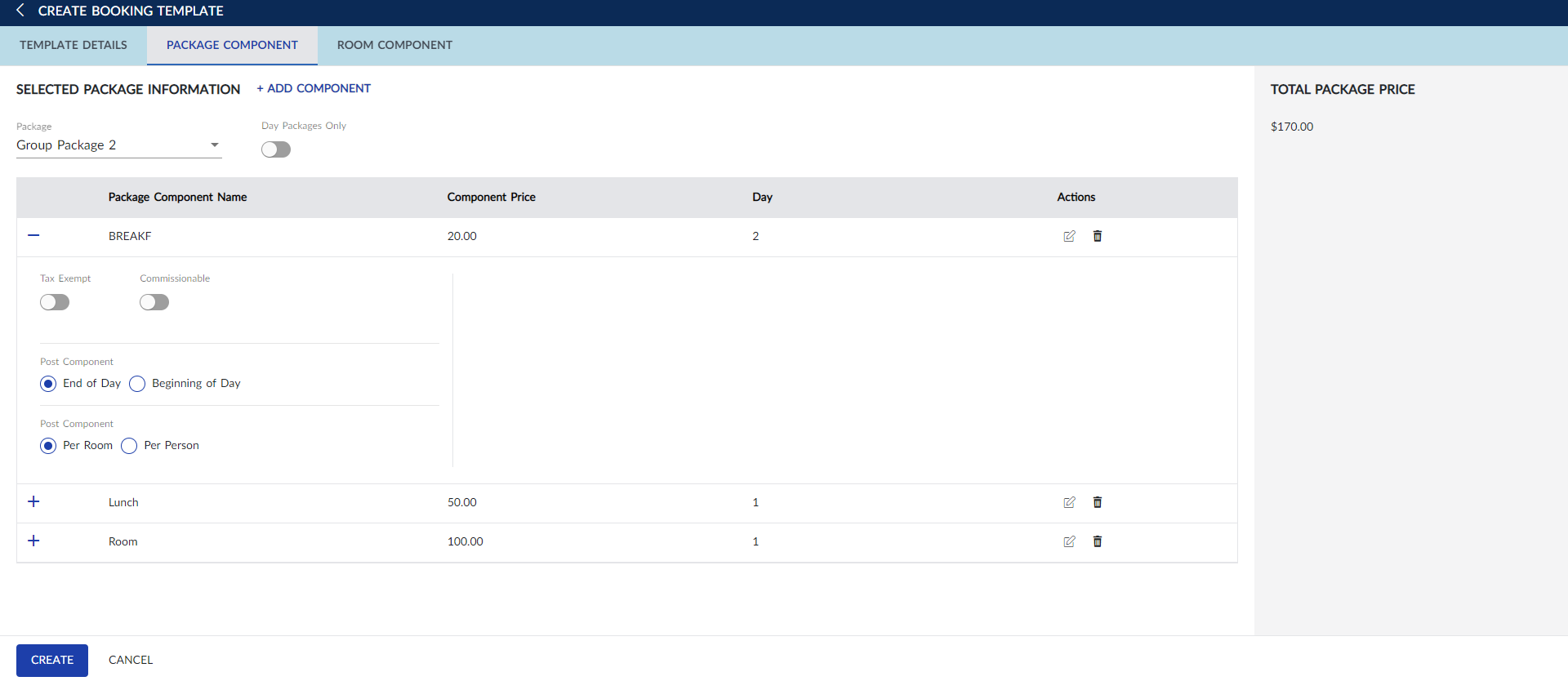
Users can also perform the following actions from the grid:
-
Modify components price and the day at which the component must be posted using the Edit icon.
-
Delete components using the Delete icon.
-
Make the components tax exempt or commissionable using the Tax Exempt and Commissionable flags.
-
Select if the component must be posted on the end of day/beginning of the day and per room/per person by selecting the respective options.
Navigate to Room Component tab.
Click Add Component.
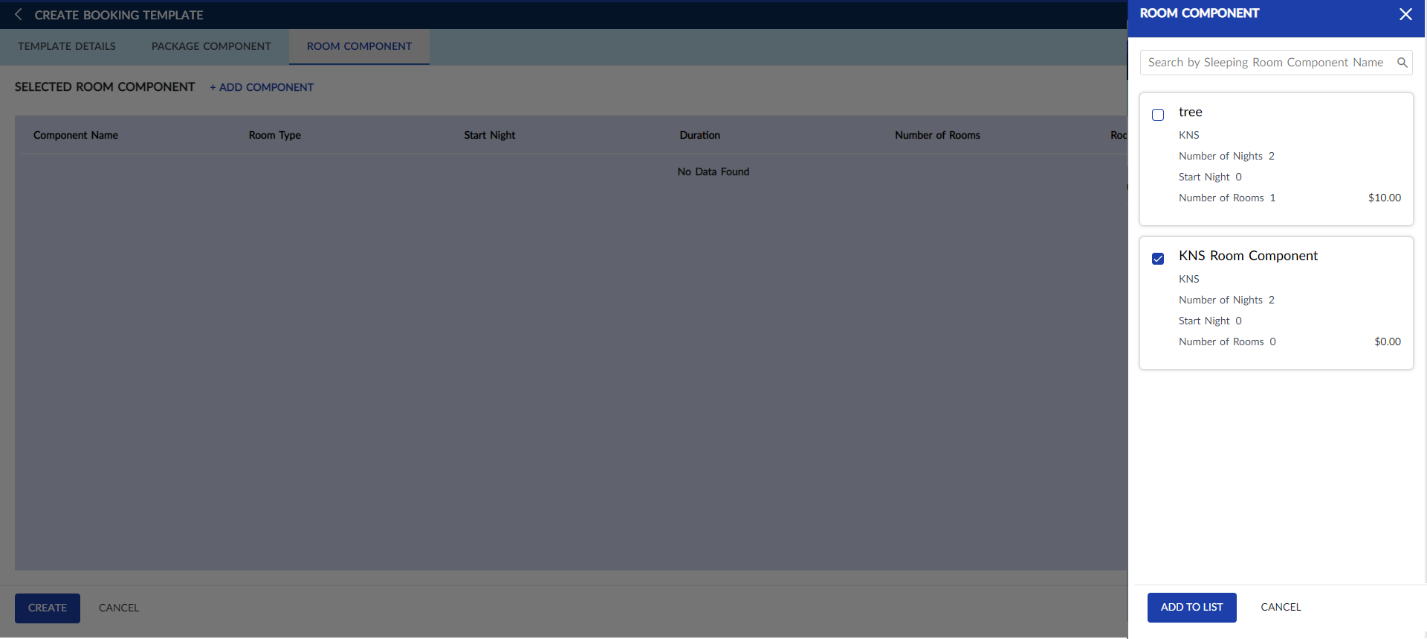
Select the sleeping room components to be attached to the booking template.
Click Add To List.
Click Create.
Users can also perform the following actions in the Booking Template screen:
-
Modify a booking template using the Edit icon.
-
Delete a booking template using the Delete icon. A booking template cannot be deleted when in use.
-
Drag a booking template to change positions within the grid using the Drag icon.